Choose which Azure Virtual Desktop pools the console collects and who can see them.
Managed versus ignored
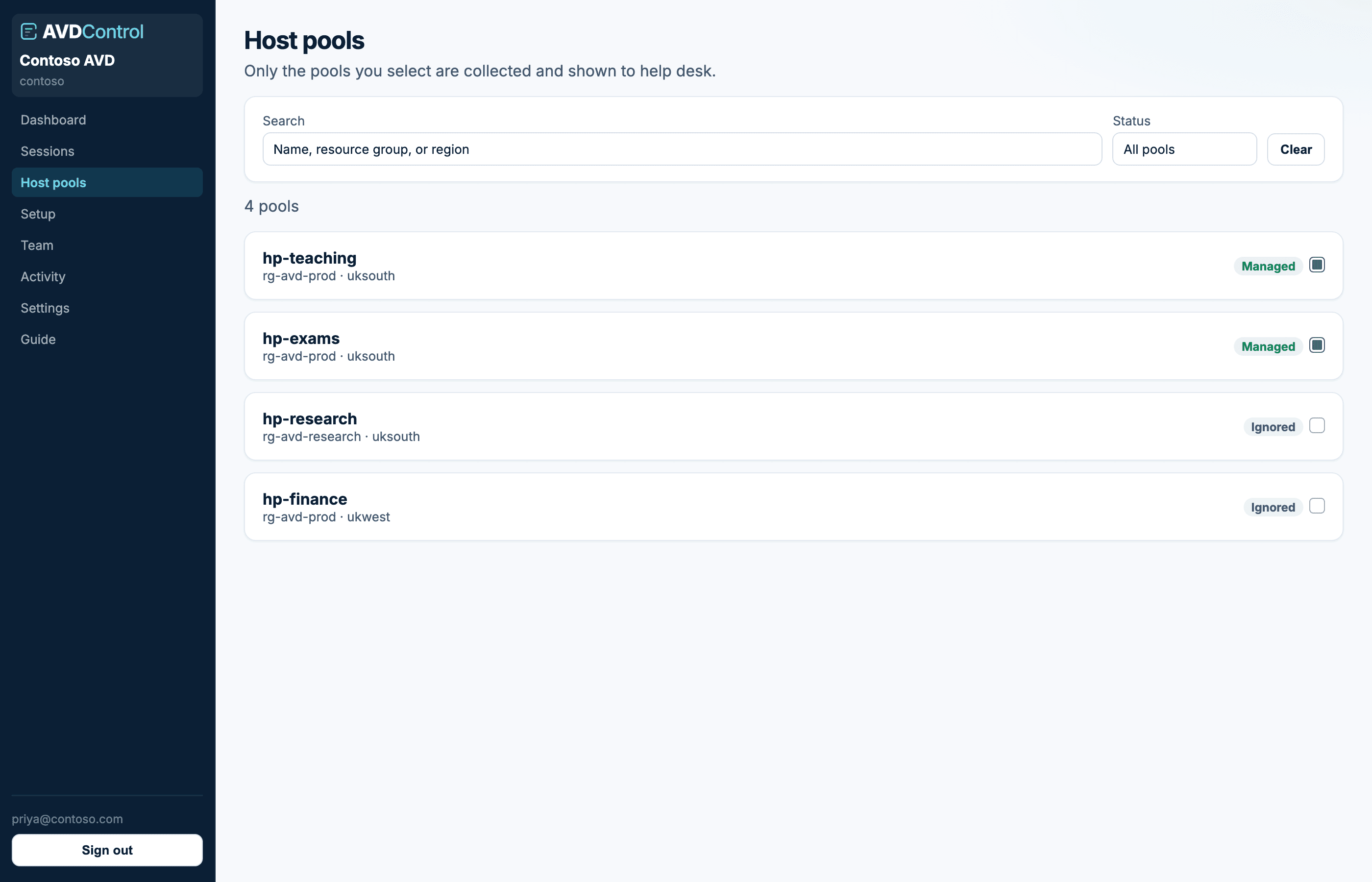
Only selected pools are collected and shown to help desk. Search by name, resource group, or region. Filter to managed or ignored, then toggle a pool on or off.
Leave research, finance, or lab pools off if those teams should not appear in the shared console. You can change this later without reconnecting Azure.
1
Find the pool
Search by host-pool name, resource group, region, or resource ID. Owners and admins can filter to Managed or Ignored.
2
Mark it managed
Turn on the checkbox. AvdControl starts collecting sessions for that pool on the next refresh.
3
Mark it ignored
Turn off the checkbox. AvdControl hides it from scoped operators and stops collecting future session data for it.
contoso.avdcontrol.com
Tick the pools that should appear. Unchecked pools are not collected.
What operators see
Help desk, session admins, and viewers who are scoped to specific pools only see those pools here and on Sessions. People with organisation-wide roles see every managed pool.
Changing a pool to ignored stops future collection and hides it from scoped operators. It does not delete the Azure host pool, change user assignments, or sign anyone out.
No pools or missing pools
If Host pools is empty for an admin, connect Azure first or refresh discovery from the Azure connection guide. If only some pools are missing, check the Azure app role scope and whether those pools live in another subscription.
If a non-admin sees no pools, they may have no host-pool assignment, or every pool in their assignment may currently be ignored.