What you need first
Create a dedicated Entra app registration for Azure collection. Grant Desktop Virtualization Reader and Desktop Virtualization Contributor on the Azure subscription that holds your host pools. Directory.Read.All is optional and only used for name lookups.
If you want Entra SSO or SCIM, prepare those separately before the Access step. SSO needs an OIDC app registration with a web redirect URI. SCIM needs a provisioning endpoint and bearer token, then group mappings in Settings after the first sync.
Nothing is live for operators until you finish Go live. You can change pools, team, and policies later.
- 1Welcome
Read the checklist. Owners and admins already need authenticator MFA.
- 2Organisation
Confirm the name people see in the portal and emails, and pick a timezone for timestamps.
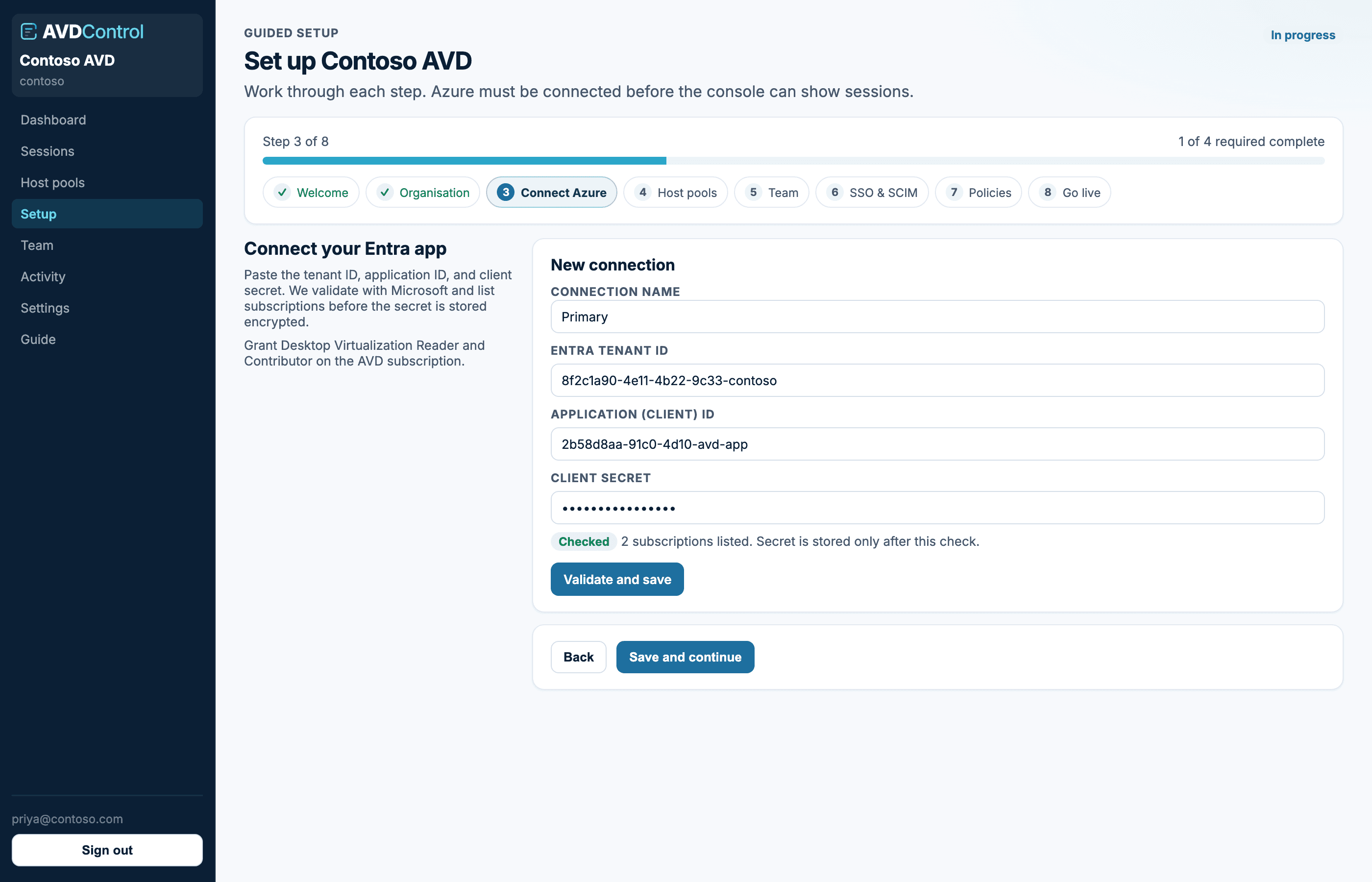
- 3Connect Azure
Paste tenant ID, application ID, and client secret for the Azure collection app. The wizard validates Microsoft login, lists subscriptions, and discovers host pools before the secret is stored. Use the Azure connection guide if validation fails.
- 4Host pools
Tick the pools that should appear in the console. Unchecked pools are ignored: sessions are not collected, and operators cannot act on them through AvdControl.
- 5Team
Invite at least one colleague for day-one access, or skip if you will use SCIM. Manual invites get organisation-wide access during setup; narrow them to specific pools later from Team.
- 6SSO and SCIM
Configure Entra sign-in, mint a SCIM token, or skip until later. Use the SSO and SCIM guide for redirect URI, token, provisioning, and group-mapping steps.
- 7Policies
Decide whether every operator needs app MFA and whether ticket references are off, optional, or required on disconnect, message, and log off. Add prefixes only if your ticketing system has a fixed format.
- 8Go live
Mark the console live when operators should use the dashboard. This unlocks normal console use but does not notify AVD end users or change Azure host pools.