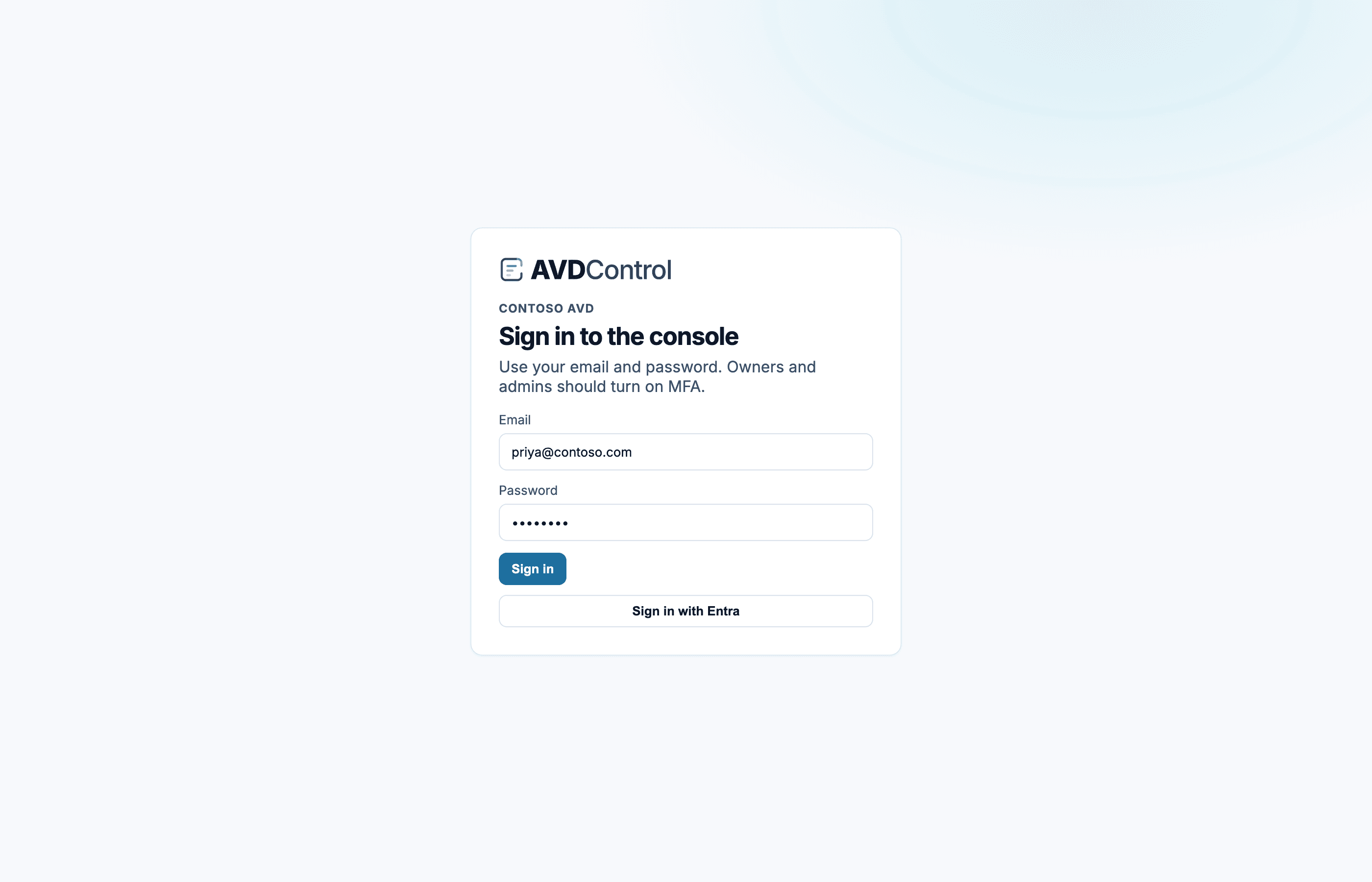
Open your organisation URL, sign in with email or Entra SSO, then complete MFA when asked.
Find your console
Each organisation has its own address: your-org.avdcontrol.com. Bookmark that URL. The public site at avdcontrol.com is for signup and this guide, not day-to-day session work.
If you do not know the address, ask the person who invited you. The invite email includes a sign-in link.
contoso.avdcontrol.com
Sign in on your organisation URL. Owners and admins should turn on authenticator MFA.
Email and password
Enter the email you were invited with and your password. After a few failed attempts the form locks for 15 minutes.
There is no public self-service password reset on the sign-in page. If you do not know your password, ask an owner or admin to remove and re-invite you, or use Entra sign-in if your organisation has enabled it.
1
Open the organisation URL
Use your organisation address, not the public marketing site. The invite email contains the right link.
2
Enter your invited email
Use the exact email address the owner invited or SCIM provisioned. Aliases may not match the account AvdControl knows.
3
Enter password or choose Entra
Use the password form for manual invites, or Sign in with Entra when your organisation has SSO configured.
4
Complete MFA if asked
Enter a six-digit authenticator code or one backup code. Backup codes are single-use.
Entra sign-in
If your owner turned on Entra SSO, a Sign in with Entra button appears on the same page. Use it when your school or trust already manages your login. You still land in the same console.
Your Entra account must already exist in AvdControl, either because an owner invited your email or because SCIM provisioned you. SSO checks your Entra email against that account the first time you sign in.
Authenticator code
Owners and admins must enrol authenticator MFA before they can use the console. Anyone else sees this step when the organisation requires MFA for all portal users.
Enter the six-digit code from your authenticator app, or a backup code from enrolment. Backup codes are shown once. Store them outside the console.
If the code is rejected, check the device time in your authenticator app. If you have lost both the authenticator and backup codes, another owner needs to help recover access.
Common sign-in problems
Unknown organisation means the URL subdomain is wrong. Too many attempts means the form is temporarily locked for 15 minutes.
Trial ended or suspended means the organisation owner needs to resolve billing or contact AvdControl. SSO errors usually mean the user has not been invited or provisioned, the Entra email claim does not match, or the Entra app secret has expired.